
Your smartphone knows more about you than any other device. GrapheneOS is an alternative operating system for Google Pixel smartphones that protects exactly this data much better – without forcing you to give up the apps you rely on. This article explains the key features in plain language. If you want to dig deeper, the blue boxes cover the technical background.
What is GrapheneOS?
Think of Android without the Google strings attached – and with much better locks on every door. GrapheneOS replaces the preinstalled Android on a Google Pixel phone. Calls, messengers, banking and navigation keep working – but you stay in control of what each app is allowed to do.
Technical: An open-source, hardened operating system based on the Android Open Source Project (AOSP). It runs only on Google Pixel devices, because only they provide the required hardware security features (including verified boot with a custom key and a relockable bootloader).
The benefits at a glance
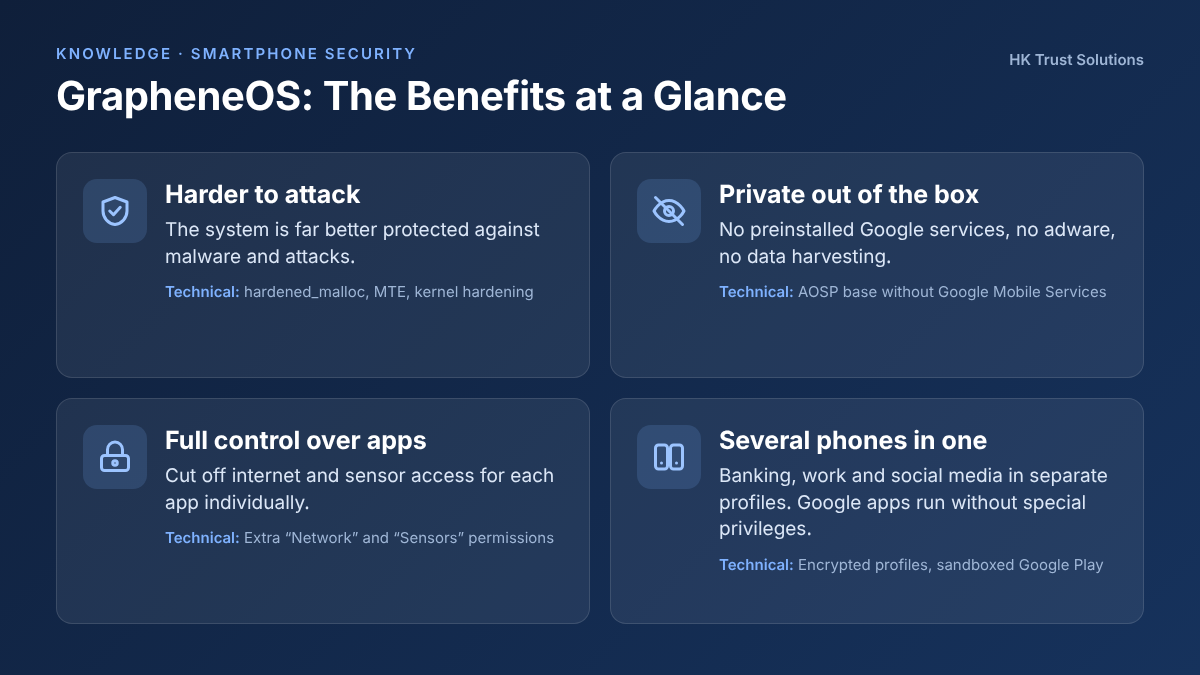
- Harder to attack: Malware has a much harder time exploiting security vulnerabilities.
- Private out of the box: No preinstalled Google services, no adware.
- Full control over apps: You can cut off internet access or sensor access for each app individually.
- Several phones in one: Banking, work and social media can live in separate profiles.
Technical: Hardened memory allocator (hardened_malloc), hardware memory tagging (MTE) on Pixel 8 and newer, kernel hardening. The “Network” and “Sensors” permissions are GrapheneOS additions – on regular Android every app gets both automatically.
User profiles: several phones in one device
Each profile works like a separate smartphone. Apps and data in profile A are invisible to profile B. For example, you can use your banking app in a profile where nothing else is installed.
How to switch profiles: Swipe down twice from the top of the screen, tap the person icon and choose the profile you want.
Technical: Each profile encrypts its data with its own keys. The separation is cryptographic, not physical – all profiles share the same hardware and kernel. After switching, the previous profile keeps running in the background; only “End session” stops it and returns its data to the encrypted state.
What the separation means in everyday use
- Links: If an app is installed only in the other profile, a link opens as a normal web page in the browser. The app never finds out.
- Files: There is deliberately no shared folder. You can still transfer files in a controlled way, for example via a local file server on the device.
Technical: The clipboard is separate per profile. For file exchange you can use the open-source app Material Files with a local FTP server on 127.0.0.1 (password-protected). The providing profile must keep running in the background; the data never leaves the device.
Using Google apps – without special privileges
A common misconception: Google and banking apps don’t run on GrapheneOS. In most cases that’s not true. Google services can be installed afterwards. The difference from a regular Android phone: they are not built deep into the system but behave like any other app. You can revoke location, contacts and other permissions at any time.
How to install Google services:
- Open the preinstalled GrapheneOS App Store app.
- Select Google Play services and tap Install.
- Done: Google services and the Play Store are set up automatically.
Technical: “Sandboxed Google Play” – a compatibility layer serves the Play services APIs without granting the services privileged system access. Google Services Framework, Google Play services and Play Store are installed as regular apps, per profile.
A note on banking apps: Most work without issues. Some apps, however, reject any system that isn’t certified by Google. Check whether your bank’s app works before switching.
Technical: The cause is Google’s Play Integrity check (“Device/Strong Integrity”). GrapheneOS supports hardware attestation, which app vendors could check instead.
Google in the main profile or separate?
| In the main profile | In a separate profile | |
|---|---|---|
| Convenience | Very high – all apps in one place | Lower – switch profiles for some apps |
| Notifications | Instant | As long as the profile runs in the background |
| Privacy | High – Google stays in the sandbox | Maximum – after “End session” nothing from Google runs |
Our recommendation
For most users the simple option is the right one: install Google services in the main profile and revoke their access to location and contacts. That combines familiar convenience with significantly more privacy. If you want maximum separation, create a dedicated profile just for Google-dependent apps.
Want to use GrapheneOS in your business or privately? We’re happy to advise you and take care of the setup.
Sources: GrapheneOS Features · GrapheneOS Usage Guide · Wikipedia: GrapheneOS